
Dead Pixel Test
Check a new monitor, laptop, TV or phone for dead and stuck pixels before the return window closes. This test fills the screen with solid colours one at a time — a stuck pixel stands out as a coloured dot, a dead one as a black dot on white — and adds patterns for backlight bleed and uniformity. Use the arrow keys to step through colours in full screen.
- Free to use
- No sign-up
- Runs in your browser

Dead pixel test
In full screen: click or press → for the next colour, ← for the previous, Esc to exit. Look closely — a magnifying glass or phone camera zoom helps.
Pixel exerciser (optional)
Photosensitivity warning: this draws a small, rapidly changing coloured square. Do not use it if you or anyone watching has photosensitive epilepsy or is sensitive to flashing light. Look away while it runs.
Display Inspection Pack
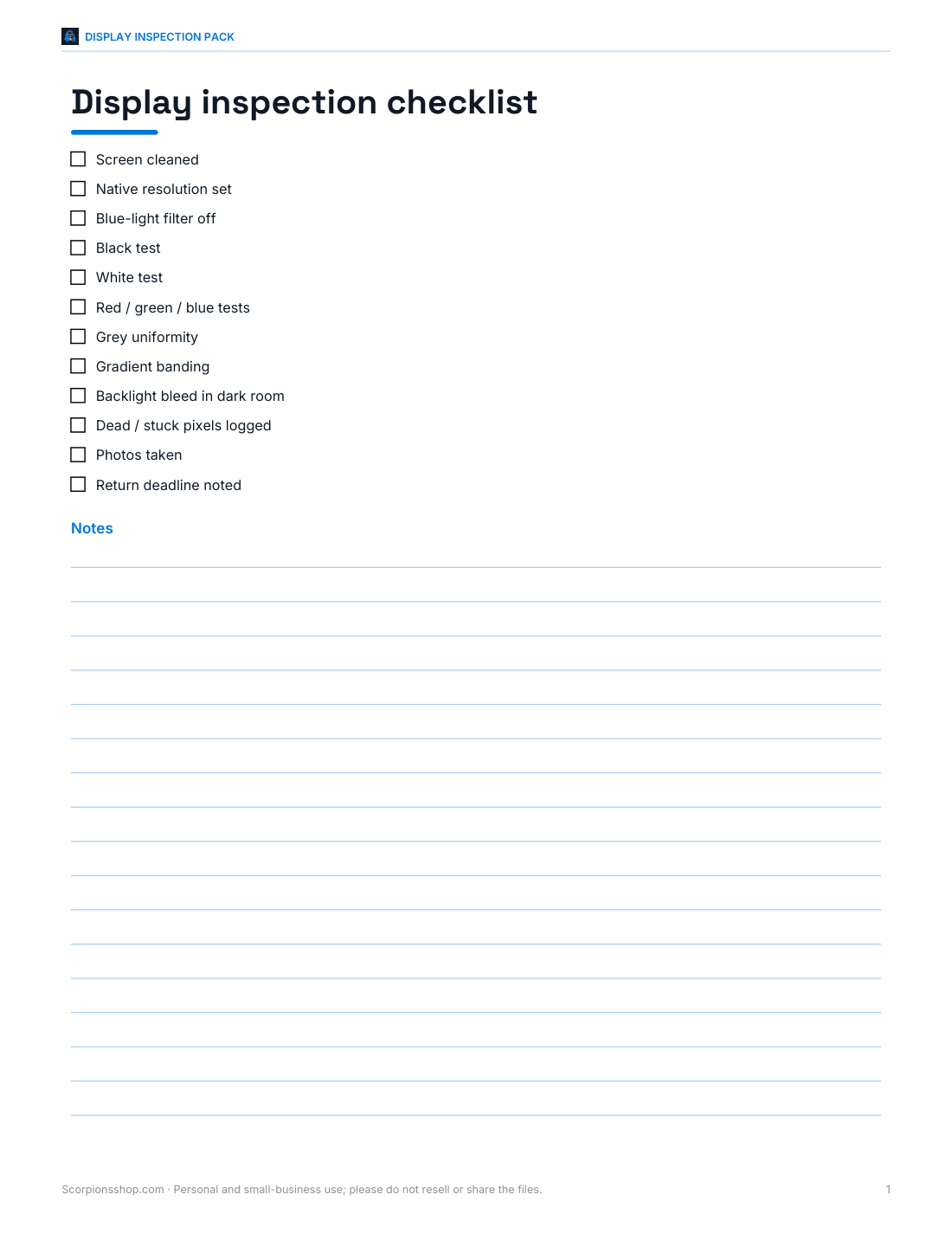
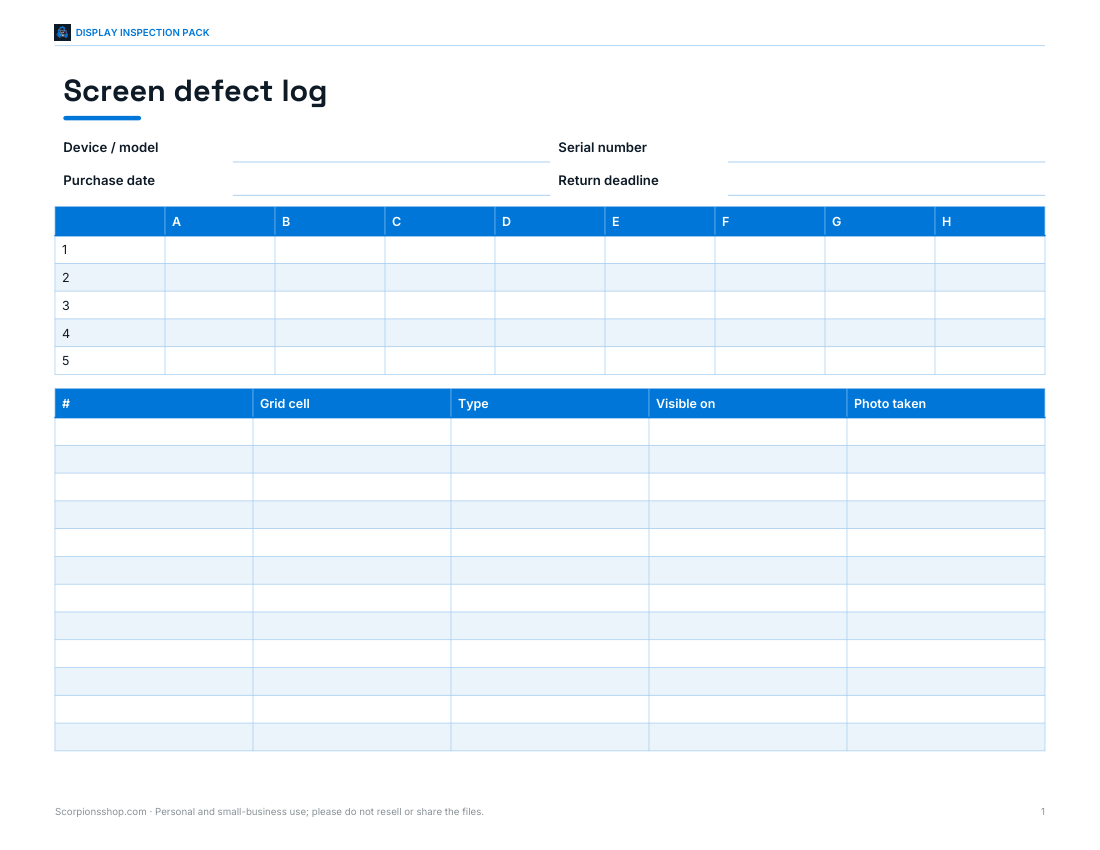
Printable display inspection checklist, defect log with screen-position grid, return and warranty claim tracker and a new-device setup checklist.
- Inspection checklist (PDF/DOCX)
- Defect log with grid (PDF)
- Claim tracker (PDF/DOCX/XLSX)
- Setup checklist (PDF/DOCX)
Formats: PDF, DOCX, XLSX. Instant download after payment (link valid 72 hours, up to 5 downloads). AI-assisted: the templates were drafted with AI help and reviewed and laid out before publishing.
$5.00 USD, one-time 4 files · about $1.25 each
- Instant download
- 7-day refund
- Secure checkout by Stripe
7-day money-back guarantee. Full refund within 7 days of purchase, even after you download.
Free sample: Display Inspection Checklist (PDF, 56 KB)
Full refund within 7 days — see the refund policy and license.
Free printables
Single sheets you can print right now, no sign-up. The full pack adds every sheet in one download plus the editable files.
 Printable Display Inspection Checklist
 Printable Screen Defect Log With Grid
 Printable Claim Tracker Sheet
 Printable New Display Setup Checklist
Dead, stuck and hot pixels
| Type | Looks like | Best test colour | Can it be fixed? |
|---|---|---|---|
| Dead pixel | Always black | White | Usually not — the transistor has failed |
| Stuck pixel | Always one colour (red, green or blue sub-pixel on) | Black, and the other primaries | Sometimes, with pixel exercising or gentle pressure |
| Hot pixel | Always white (all sub-pixels on) | Black | Rarely |
| Partial sub-pixel | Dim or wrong colour on some backgrounds | Each primary colour | Sometimes |
Each pixel on an LCD or OLED screen is made of red, green and blue sub-pixels. A stuck pixel has one or more sub-pixels permanently on; a dead one has them permanently off.
How to test
- Clean the screen gently so dust isn’t mistaken for pixels.
- Set the display to its native resolution and turn off any night-light or blue-light filter.
- Start the full-screen test and step through each colour slowly.
- Scan the screen in sections — top to bottom, left to right — from normal viewing distance, then closer.
- Use a phone camera zoom to confirm a suspect dot.
- Note the colour and position of anything you find.
Test a new display on the day it arrives — many retailers only accept returns for pixel defects within a short window.
Backlight bleed, glow and uniformity
On the black screen, LCD monitors often show lighter patches at the edges or corners. Some “IPS glow” that changes with viewing angle is normal for IPS panels; bleed that is visible straight on in a dark room may be a defect worth reporting. The grey screens show uneven brightness or tinted areas, and the gradient reveals banding. OLED screens have no backlight, so they should look uniformly black, but can show slight tints on dark grey.
Manufacturer pixel policies
Many display manufacturers publish a pixel policy that sets how many defective pixels a panel may have before it qualifies for replacement under warranty. Policies differ between brands and product lines — some offer zero bright-pixel guarantees on premium models, others allow a small number of defects, and some specify where on the screen they are. Check the policy for your model on the maker’s website, and remember that retailer return windows are often more generous than warranty rules in the first days.
Worked example
A new 27-inch monitor arrives. On the black screen, one bright green dot is visible about 10 cm from the right edge and 6 cm from the top; on the green screen it disappears, confirming a stuck green sub-pixel. The owner photographs it on the black test screen with the phone’s zoom, notes the position and date in the inspection log, and runs the pixel exerciser over the spot for ten minutes. The dot remains, so they contact the retailer within the return window with the photo and log.
About the pixel exerciser
Pixel exercisers rapidly cycle a small area through colours to try to “unstick” a stuck sub-pixel. Results are mixed — it sometimes works for stuck pixels, and it won’t revive a dead pixel. Because it flashes, use it only after reading the warning, keep it small, look away, and never use it around people who may be sensitive to flashing lights. Pressing on the screen is sometimes suggested but can damage panels and may void warranties; we don’t recommend it.
Phones, tablets and TVs
On phones and tablets, open this page, start the test and tap to change colours. For TVs, open the page on a smart-TV browser, or cast your computer screen. Set TVs to a standard picture mode first, as vivid or dynamic modes can hide uniformity problems.
Other screen problems to check
- Image retention on OLED: after showing a static image, look at grey for faint ghosts.
- Flicker: at low brightness, some screens flicker; filming the screen with a phone in slow motion can reveal it.
- Scratches or pressure marks: tilt the screen under a light.
- Colour tint: compare white with a sheet of white paper in daylight.
The inspection pack
The optional pack includes a printable display inspection checklist, a defect log with a screen-position grid, a return and warranty claim tracker, and a new-device setup checklist. The test on this page is free.
AI-assisted content
This page was drafted with AI assistance and reviewed before publishing.
Frequently asked questions
How do I check for dead pixels?
Show solid black, white, red, green and blue full screen and look for dots that don’t match.
What is the difference between a dead and a stuck pixel?
A dead pixel stays black; a stuck pixel stays one colour.
Can stuck pixels be fixed?
Sometimes, with a pixel exerciser; dead pixels usually can’t.
Is backlight bleed normal?
Some edge glow is common on LCDs; strong bleed visible head-on may be a defect.
Does the test work on phones and TVs?
Yes, in any modern browser; tap to change colours.
Is the flashing exerciser safe?
Not for people with photosensitive epilepsy; read the warning and look away while it runs.
How many dead pixels are acceptable?
It depends on the manufacturer’s pixel policy and your retailer’s return terms; many buyers return a new display with any obvious bright pixel.
Can the test damage my screen?
No — it simply displays colours. Avoid leaving static images on OLED screens for long periods.